Following on from 'Old School Demo 1' and 'Beast Tribute - Old School Demo 2', comes the cunningly named 'Old School Demo III', released today by Cosine. The demo was written in response to a challenge issued by the owners of the DBF Interactive website and forum to create something for Halloween 2018.
My main inspiration for the demo was the silhouette image in the hidden part of 'Sabbat', a 2013 Halloween demo released by Arkanix Labs, for which I pixelled and composed most of the assets.
The demo has been released by Cosine and is available to download from the Cosine website here...
You can also download the demo directly here...
The whole caboodle is on GitHub here...
There are a few key presses to find to activate some of the sprites as well as a key combo press to find the hidden part...
I'll follow up shortly with another blog post with a little more detail
of how the demo works, how the graphics hang together, how the music was
written and so on.
Showing posts with label PC. Show all posts
Wednesday, 31 October 2018
Saturday, 18 August 2018
Blok Copy in Progress
![]() |
| Blok Copy PC Title Screen |
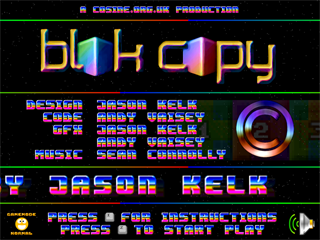
Continuing my PureBasic adventures and as a challenge to myself, I'm converting a Cosine game called 'Blok Copy', previously released on the C64, C64DTV, Atari 8bit and Commodore PET, to Windows PC.
![]() |
| Blok Copy PC Game Screen |
The main game engine is functioning. All the controls are in, along with the scoring, timer and level counter. Even the pause mode works.
I'm currently working out the best way to animate the number tiles during the main game, which involves building sprites on the fly and then moving them on screen.
To be honest, this has been a stumbling block. I've already coded one animation system that worked fine on my own system and on Moloch's laptop. However, for some reason, it crawls on TMR's system. I could just say, "tough!", but I want to find the issue and make sure it will work on a range of systems.
Bloody computers.
Monday, 21 May 2018
Beast Tribute Demo
My main focus and inspiration for the demo was the Amiga game 'Shadow of the Beast'.
The demo is subtitled 'Old School Demo 2', as it's a follow up to 'Old School Demo 1' (funnily enough) which itself was released by Cosine in April 2018.
Out of respect, it contains some original graphics from the Amiga game (the main sprite and the parallax stone wall/fence), along with brand new graphics pixelled by me in the style of the old game.
The music is also new, composed by me in OpenMPT using the original samples ripped from the game and done in 4 channel MOD format in the style of David Whittaker's original soundtrack.
The demo has been released by Cosine and is available to download from the Cosine website here...
You can also download the demo (along with PureBasic source and all binaries and work files) here or via GitHub here.
Sunday, 15 April 2018
PureBasic Parallax Starfield
I've always wanted to create a parallax starfield since the days of my C64 game-playing and demo-watching youth, but never had the tools or skills to create one. Time has come...
After coding a couple of applications in PureBasic, I decided to turn my attention to the graphical abilities of said programming language. Research time and first port of call was the PureBasic forum where I found a few examples, but they were either too old for my version of PureBasic so wouldn't compile, or were overly complicated with lots of added effects that I didn't want or need.
So I decided to go it alone and code a clean and simple routine that I would then be able to 'plug' into other projects if I needed to fill the background with something interesting, as I did with 'Old School Demo 1'. This is what I came up with to generate a simple 4 layer starfield...
The above code will actually run stand alone; if you compile it in PureBasic, it will open its own window and display the scrolling starfield until you exit by pressing 'escape'.
What is each part of the code doing?
This section does what the comment says and initialises the environment - to be able to detect keypresses you must initialise the keyboard and to be able to use any graphics (including sprites) in a window you must initialise the sprite system.
This section creates variables and assigns number values. Changing the value of #XRES and #YRES alters the size of the window in which the starfield is displayed. The other variables created control the speed of the scroll of each star layer, in this example 'layer 1' is the slowest to simulate being the furthest away and layer 4 the quickest to simulate being the closest, with layers 2 and 3 being somewhere in between.
Next, I've created some procedures.
This first procedure opens a window on the users screen with the size of #XRES and #YRES, with a title "Parallax Stars!" and centres the window in the users display. It then opens a 'windowed screen' in this window which enables the use of powerful graphic commands that display images and sprites really quickly, enough so to create fast demos and games.
This next procedure then creates 4 sprites 'on the fly' and then randomly fills them with dots pretending to be stars. Each sprite is held in a named variable starting with 'sp_' to indicate it's a sprite plus a name to indicate it's level in the display, so 'BKGRDSTAR' is the background layer, 'MDGRDSTAR' being the mid layer and so on. This is my naming convention, you could call the sprite whatever you like. Each sprite is created the same size as the window (#XRES, #YRES).
When randomly filling with dots, the closer the layer the fewer the number of dots (n). Also, since the background stars would be further away they are darker, RGB(100,100,100), while the closest layer is brighter, RGB(255,255,255).
This next procedure draws the actual sprites (starfields) on the screen when this procedure is called later in the code. The sprites are drawn in 'transparent' mode, whereby everything that is black is transparent so shows everything underneath. Therefore, the stars (dots) on each sprite layer are always visible.
Each sprite layer is moved sideways using the #LAYERSPEED variables, with each layer moving a set number of pixels defined by that variable. The sprites loop around continuously when they have scrolled their #XRES limit.
Now the program begins to actually execute by calling the 'OpenMainWindow()' procedure to open a window, generate the sprites by calling the 'CreateStarfields()' procedure and then unhides the window so we can see it, if it was hidden in the 'openwindow' procedure (which in this example it actually isn't).
The code now enter a continuous loop where it waits for a window event, clears the screen each frame, draws the starfields in their new positions, flips to the second prepared screen where the drawing of starfields has taken place out of view to ensure smoothness, then checks the keyboard to see if the user has pressed 'escape'.
If the user pressed space, then the program loop exits, erases all sprites and closes the window. Technically, the 'End' command does this automatically but I like to be thorough.
This code can easily be adapted to make the stars scroll the opposite direction, or even up/down.
If you want the raw code to copy and paste into PureBasic, grab it from Pastebin here...
After coding a couple of applications in PureBasic, I decided to turn my attention to the graphical abilities of said programming language. Research time and first port of call was the PureBasic forum where I found a few examples, but they were either too old for my version of PureBasic so wouldn't compile, or were overly complicated with lots of added effects that I didn't want or need.
So I decided to go it alone and code a clean and simple routine that I would then be able to 'plug' into other projects if I needed to fill the background with something interesting, as I did with 'Old School Demo 1'. This is what I came up with to generate a simple 4 layer starfield...
;- INITIALISE ENVIRONMENT ------------------------------------
InitKeyboard()
InitSprite()
;- CREATE VARIABLES ------------------------------------------
#XRES = 800
#YRES = 600
#LAYER1SPEED = 1
#LAYER2SPEED = 3
#LAYER3SPEED = 5
#LAYER4SPEED = 10
;- PROCEDURES ------------------------------------------------
Procedure OpenMainWindow()
OpenWindow(0,0,0,#XRES,#YRES,"Parallax Stars!",#PB_Window_ScreenCentered)
OpenWindowedScreen(WindowID(0),0,0,#XRES,#YRES)
EndProcedure
Procedure CreateStarfields()
Global sp_BKGRDSTAR = CreateSprite(#PB_Any,#XRES,#YRES)
StartDrawing(SpriteOutput(sp_BKGRDSTAR))
For n=0 To 999
Plot(Random(#XRES-1),Random(#YRES-1),RGB(100,100,100))
Next
StopDrawing()
Global sp_MDGRDSTAR = CreateSprite(#PB_Any,#XRES,#YRES)
StartDrawing(SpriteOutput(sp_MDGRDSTAR))
For n=0 To 299
Plot(Random(#XRES-1),Random(#YRES-1),RGB(150,150,150))
Next
StopDrawing()
Global sp_FTGRDSTAR = CreateSprite(#PB_Any,#XRES,#YRES)
StartDrawing(SpriteOutput(sp_FTGRDSTAR))
For n=0 To 199
Plot(Random(#XRES-1),Random(#YRES-1),RGB(200,200,200))
Next
StopDrawing()
Global sp_CLGRDSTAR = CreateSprite(#PB_Any,#XRES,#YRES)
StartDrawing(SpriteOutput(sp_CLGRDSTAR))
For n=0 To 19
Plot(Random(#XRES-1),Random(#YRES-1),RGB(255,255,255))
Next
StopDrawing()
EndProcedure
Procedure DrawStarfields()
Shared bgx1, bgx2, bgx3, bgx4
For s1 = 0 To 1
For s2 = 0 To 1
DisplayTransparentSprite(sp_BKGRDSTAR,#XRES*s1-bgx1,#YRES*s2)
DisplayTransparentSprite(sp_MDGRDSTAR,#XRES*s1-bgx2,#YRES*s2)
DisplayTransparentSprite(sp_FTGRDSTAR,#XRES*s1-bgx3,#YRES*s2)
DisplayTransparentSprite(sp_CLGRDSTAR,#XRES*s1-bgx4,#YRES*s2)
Next
Next
bgx1+#LAYER1SPEED : If bgx1 > #XRES-1 : bgx1=0 : EndIf
bgx2+#LAYER2SPEED : If bgx2 > #XRES-1 : bgx2=0 : EndIf
bgx3+#LAYER3SPEED : If bgx3 > #XRES-1 : bgx3=0 : EndIf
bgx4+#LAYER4SPEED : If bgx4 > #XRES-1 : bgx4=0 : EndIf
EndProcedure
;- BEGIN PROGRAM ----------------------------------------------------
OpenMainWindow()
CreateStarfields()
HideWindow(0,#False)
;- MAIN PROGRAM LOOP ------------------------------------------------
Repeat
WaitWindowEvent(1)
ClearScreen(0)
DrawStarfields()
FlipBuffers()
ExamineKeyboard()
Until KeyboardPushed(#PB_Key_Escape)
;- EXIT PROGRAM ----------------------------------------------------
FreeSprite(#PB_All)
CloseWindow(#PB_All)
End
The above code will actually run stand alone; if you compile it in PureBasic, it will open its own window and display the scrolling starfield until you exit by pressing 'escape'.
What is each part of the code doing?
;- INITIALISE ENVIRONMENT ------------------------------------
InitKeyboard()
InitSprite()
This section does what the comment says and initialises the environment - to be able to detect keypresses you must initialise the keyboard and to be able to use any graphics (including sprites) in a window you must initialise the sprite system.
;- CREATE VARIABLES ------------------------------------------
#XRES = 800
#YRES = 600
#LAYER1SPEED = 1
#LAYER2SPEED = 3
#LAYER3SPEED = 5
#LAYER4SPEED = 10
This section creates variables and assigns number values. Changing the value of #XRES and #YRES alters the size of the window in which the starfield is displayed. The other variables created control the speed of the scroll of each star layer, in this example 'layer 1' is the slowest to simulate being the furthest away and layer 4 the quickest to simulate being the closest, with layers 2 and 3 being somewhere in between.
Next, I've created some procedures.
;- PROCEDURES ------------------------------------------------
Procedure OpenMainWindow()
OpenWindow(0,0,0,#XRES,#YRES,"Parallax Stars!",#PB_Window_ScreenCentered)
OpenWindowedScreen(WindowID(0),0,0,#XRES,#YRES)
EndProcedure
This first procedure opens a window on the users screen with the size of #XRES and #YRES, with a title "Parallax Stars!" and centres the window in the users display. It then opens a 'windowed screen' in this window which enables the use of powerful graphic commands that display images and sprites really quickly, enough so to create fast demos and games.
Procedure CreateStarfields()
Global sp_BKGRDSTAR = CreateSprite(#PB_Any,#XRES,#YRES)
StartDrawing(SpriteOutput(sp_BKGRDSTAR))
For n=0 To 999
Plot(Random(#XRES-1),Random(#YRES-1),RGB(100,100,100))
Next
StopDrawing()
Global sp_MDGRDSTAR = CreateSprite(#PB_Any,#XRES,#YRES)
StartDrawing(SpriteOutput(sp_MDGRDSTAR))
For n=0 To 299
Plot(Random(#XRES-1),Random(#YRES-1),RGB(150,150,150))
Next
StopDrawing()
Global sp_FTGRDSTAR = CreateSprite(#PB_Any,#XRES,#YRES)
StartDrawing(SpriteOutput(sp_FTGRDSTAR))
For n=0 To 199
Plot(Random(#XRES-1),Random(#YRES-1),RGB(200,200,200))
Next
StopDrawing()
Global sp_CLGRDSTAR = CreateSprite(#PB_Any,#XRES,#YRES)
StartDrawing(SpriteOutput(sp_CLGRDSTAR))
For n=0 To 19
Plot(Random(#XRES-1),Random(#YRES-1),RGB(255,255,255))
Next
StopDrawing()
EndProcedure
This next procedure then creates 4 sprites 'on the fly' and then randomly fills them with dots pretending to be stars. Each sprite is held in a named variable starting with 'sp_' to indicate it's a sprite plus a name to indicate it's level in the display, so 'BKGRDSTAR' is the background layer, 'MDGRDSTAR' being the mid layer and so on. This is my naming convention, you could call the sprite whatever you like. Each sprite is created the same size as the window (#XRES, #YRES).
When randomly filling with dots, the closer the layer the fewer the number of dots (n). Also, since the background stars would be further away they are darker, RGB(100,100,100), while the closest layer is brighter, RGB(255,255,255).
Procedure DrawStarfields()
Shared bgx1, bgx2, bgx3, bgx4
For s1 = 0 To 1
For s2 = 0 To 1
DisplayTransparentSprite(sp_BKGRDSTAR,#XRES*s1-bgx1,#YRES*s2)
DisplayTransparentSprite(sp_MDGRDSTAR,#XRES*s1-bgx2,#YRES*s2)
DisplayTransparentSprite(sp_FTGRDSTAR,#XRES*s1-bgx3,#YRES*s2)
DisplayTransparentSprite(sp_CLGRDSTAR,#XRES*s1-bgx4,#YRES*s2)
Next
Next
bgx1+#LAYER1SPEED : If bgx1 > #XRES-1 : bgx1=0 : EndIf
bgx2+#LAYER2SPEED : If bgx2 > #XRES-1 : bgx2=0 : EndIf
bgx3+#LAYER3SPEED : If bgx3 > #XRES-1 : bgx3=0 : EndIf
bgx4+#LAYER4SPEED : If bgx4 > #XRES-1 : bgx4=0 : EndIf
EndProcedure
This next procedure draws the actual sprites (starfields) on the screen when this procedure is called later in the code. The sprites are drawn in 'transparent' mode, whereby everything that is black is transparent so shows everything underneath. Therefore, the stars (dots) on each sprite layer are always visible.
Each sprite layer is moved sideways using the #LAYERSPEED variables, with each layer moving a set number of pixels defined by that variable. The sprites loop around continuously when they have scrolled their #XRES limit.
;- BEGIN PROGRAM ----------------------------------------------------
OpenMainWindow()
CreateStarfields()
HideWindow(0,#False)
Now the program begins to actually execute by calling the 'OpenMainWindow()' procedure to open a window, generate the sprites by calling the 'CreateStarfields()' procedure and then unhides the window so we can see it, if it was hidden in the 'openwindow' procedure (which in this example it actually isn't).
;- MAIN PROGRAM LOOP ------------------------------------------------
Repeat
WaitWindowEvent(1)
ClearScreen(0)
DrawStarfields()
FlipBuffers()
ExamineKeyboard()
Until KeyboardPushed(#PB_Key_Escape)
The code now enter a continuous loop where it waits for a window event, clears the screen each frame, draws the starfields in their new positions, flips to the second prepared screen where the drawing of starfields has taken place out of view to ensure smoothness, then checks the keyboard to see if the user has pressed 'escape'.
;- EXIT PROGRAM ----------------------------------------------------
FreeSprite(#PB_All)
CloseWindow(#PB_All)
End
If the user pressed space, then the program loop exits, erases all sprites and closes the window. Technically, the 'End' command does this automatically but I like to be thorough.
This code can easily be adapted to make the stars scroll the opposite direction, or even up/down.
If you want the raw code to copy and paste into PureBasic, grab it from Pastebin here...
Friday, 6 April 2018
Old School Demo 1
The demo is titled 'Old School Demo 1' because it's, er, old-school in style and is the first in what may end up being a small string of demos that I may (or not) code as I learn more in PureBasic.
I've tried to 'emulate' some of my favourite features from the old Amiga demos so on screen you will see a scrolling parallax starfield, some 'copper bars' (faked of course), some animated rainbow coloured lines, the obligatory bouncing scrolling message and music which is actually a remix of the Uridium 2 loading music done by the original composer Jason Page.
The demo has been released by Cosine and is available to download from the Cosine website here...
You can also download the demo directly here...
As well as the demo itself, the download contains the PureBasic source code for you to squint at and rip apart. Well, someone may find it useful?
Sunday, 25 June 2017
PureBasic Array Flood Fill
![]() |
| PureBasic CartographPC - Click to Enlarge |
Actually, a mapping application already exists called 'CartographPC', produced by Arkanix Labs to do just that job, but it is coded in VisualBasic 6, itself no longer supported by Microsoft and increasingly difficult to run on more modern OS's.
At some point (and I can't remember when or why), I started rewriting the application in PureBasic. All the basic features are included so far, but then it was suggested that I add a 'flood fill' feature to randomly fill areas of the map with selected graphics, to produce random looking patches of dirt, grass, paths and so on, without having to manually fill whole areas. Hmmm... flood fill.
A bit of research on the internet about flood fill turned up quite a few theories, the most common being 'recursion'. Basically, a routine repeatedly calls itself until a certain stage is reached at which point the routine exits itself.
In CartographPC (at least in the PureBasic version) the map data is held in an array, so I needed to find a way to fill an array with certain numbers (which represent graphic blocks) which observed other existing graphics and potential boundaries such as the edge of the map or enclosed area. To the more seasoned coder, this may present no issue, but I'm new(ish) to PureBasic coding so it was a bit of a challenge and this is what I came up with:
Procedure floodfill(x, y)
If a_MAPDATA(x, y) <> blnkchar
ProcedureReturn 0
EndIf
If a_MAPDATA(x,y) = blnkchar
rnd = Random(rancharsel)
rnd = rnd - 1
If rnd < 0
rnd = 0
EndIf
a_MAPDATA(x, y) = a_RNDCHARS(rnd)
EndIf
If x > 0 ; fill left
floodfill(x - 1, y)
EndIf
If y > 0 ; fill up
floodfill(x, y - 1)
EndIf
If x < mcw ; fill right
floodfill(x + 1, y)
EndIf
If y < mch ; fill down
floodfill(x, y + 1)
EndIf
EndProcedure
The routine is contained in a 'procedure' called 'floodfill(x, y)' that can be called from the main program. A quick explanation of some of the things in the code above:
- a_MAPDATA(x, y) is my array holding the map layout with 'x' and 'y' being a location in the 2D array (matrix).
- 'blnkchar' is a variable which holds the number of the graphic block which is 'blank' on the map.
- 'rancharsel' is a variable containing the number of graphic blocks the user wants to use in the random fill.
- a_RNDCHARS(rnd) is an array that contains the graphic blocks the user wants to use in the flood fill.
- 'mcw' and 'mch' are variables holding the width and height of the map.
So what does each part of that routine do?
If a_MAPDATA(x, y) <> blnkchar
ProcedureReturn 0
EndIf
The above is the base case which basically says that if the map or area being filled is no longer 'empty', then exit the procedure, or in PureBasic terminology 'ProcedureReturn 0'.
If a_MAPDATA(x,y) = blnkchar
rnd = Random(rancharsel)
rnd = rnd - 1
If rnd < 0
rnd = 0
EndIf
a_MAPDATA(x, y) = a_RNDCHARS(rnd)
EndIf
This section checks if the element of the array we are currently on is empty (blnkchar) and if so, it generates a random number (rnd) between 0 and the number variable held by 'rancharsel'. The element in the map array is then changed to contain the number held in the random chars array (previously filled with graphic blocks selected by the user) at position 'rnd'.
If x > 0 ; fill left
floodfill(x - 1, y)
EndIf
Now some magic (at least in my eyes) starts to happen. The above checks to see if we are at the far left of the array and therefore map (x > 0). If not, our 'x' position in the array is moved left (x -1) and the procedure returns to the beginning to change the map array and draw a graphic block on the map. If we are at the far left of the array / map (x = 0), then we proceed to the next section in the procedure.
If y > 0 ; fill up
floodfill(x, y - 1)
EndIf
Now we start moving up the map / array, checking and drawing until our 'y' position is '0', the top of the map. Each time the routine loops around, it check left in the array first and then up in the array. But of course, we could also move right or down in the array until we reach the far right or bottom of the map / array. This is checked by the following:
If x < mcw ; fill right
floodfill(x + 1, y)
EndIf
If y < mch ; fill down
floodfill(x, y + 1)
EndIf
So each time the routine loops, the array is checked left, up, right then down from the current position. If the drawing was updated on the screen slowly for every graphic block, which in the application it isn't because that would be too slow, the fill would snake around the screen up, left, right and down until boundaries or existing graphics are encountered, eventually leading to the array / map being filled with the desired graphics.
I'm sure that more seasoned coders could refine the code further and make it better / more efficient, but in this state it works for my application and that is fine by me!
If you want the raw code to copy and paste into PureBasic, grab it from Pastebin here...
Monday, 15 May 2017
UltrafontPC V1.0
Today, Arkanix Labs released Ultrafont V1.0. UltrafontPC is an application for designing hires character
sets for the C64. This Windows application is inspired by the C64 native Ultrafont by Charles Brannon.
This version is a follow up to UltrafontPC V0.9b, an application that I coded in PureBasic.
Changes since UltrafontPC V0.9b include:
Added
- Application window no longer limited to 1975x1124 (experimental)
- Status bar shows hex number of char and which charset is being edited
- Two charsets that can be in memory at same time, displayed at bottom of the main editor window
- Import of previously save charset images in PNG/JPG/BMP format
- Simple screen editor to allow typing test of custom charset/font, with various tools
- Screen editor can switch between U.S. and U.K. keymaps
- Slide up, down, left, right of entire charset without individual char wrap
- Preview of 1x2, 2x1, and 2x2 auto-created fonts in preview window
- Preview window of 1x2, 2x1, and 2x2 fonts can now remain open while editing
- If scanline emulation is selected from main menu, this carries over to auto-create preview window
- Brightness of char edit/preview windows selectable (high, medium, low) and state saved
- Flip char vertical / horizontal
- Status bar showing original ROM symbol and number of char being edited
- Dump charset as image to clipboard
- Both x86 and x64 versions available
Changed
- Image dumps now uses name of current file instead of hard-coded filename to avoid overwrites
Fixed
- Random crashes when exporting charset as PNG/JPG/BMP image
- Redo no longer crashes when at end of list
- changelog.txt file decodes and displays correctly in 'About' window change log panel
The application can be downloaded from CSDb here...
It can also be downloaded from this blog directly using the following links:
UltrafontPC V1.0 x86 Installer (.exe)
UltrafontPC V1.0 x64 Installer (.exe)
UltrafontPC V1.0 No-Installer (.zip)
This version is a follow up to UltrafontPC V0.9b, an application that I coded in PureBasic.
Changes since UltrafontPC V0.9b include:
Added
- Application window no longer limited to 1975x1124 (experimental)
- Status bar shows hex number of char and which charset is being edited
- Two charsets that can be in memory at same time, displayed at bottom of the main editor window
- Import of previously save charset images in PNG/JPG/BMP format
- Simple screen editor to allow typing test of custom charset/font, with various tools
- Screen editor can switch between U.S. and U.K. keymaps
- Slide up, down, left, right of entire charset without individual char wrap
- Preview of 1x2, 2x1, and 2x2 auto-created fonts in preview window
- Preview window of 1x2, 2x1, and 2x2 fonts can now remain open while editing
- If scanline emulation is selected from main menu, this carries over to auto-create preview window
- Brightness of char edit/preview windows selectable (high, medium, low) and state saved
- Flip char vertical / horizontal
- Status bar showing original ROM symbol and number of char being edited
- Dump charset as image to clipboard
- Both x86 and x64 versions available
Changed
- Image dumps now uses name of current file instead of hard-coded filename to avoid overwrites
Fixed
- Random crashes when exporting charset as PNG/JPG/BMP image
- Redo no longer crashes when at end of list
- changelog.txt file decodes and displays correctly in 'About' window change log panel
The application can be downloaded from CSDb here...
It can also be downloaded from this blog directly using the following links:
UltrafontPC V1.0 x86 Installer (.exe)
UltrafontPC V1.0 x64 Installer (.exe)
UltrafontPC V1.0 No-Installer (.zip)
Friday, 24 February 2017
UltrafontPC V0.9b
Today, Arkanix Labs released Ultrafont V0.9b. UltrafontPC is an application for designing hires character
sets for the C64. This Windows application is inspired by the C64 native Ultrafont by Charles Brannon.
I've coded the application in PureBasic. It was heavily adapted from code by Mark Thomas Ross (AuMTRoN), with me fixing / changing large sections as well as adding lots of new code.
Thanks for suggestions and for testing go to Jon Mines (Moloch) and Ray Lejuez (Warlock).
The application can be downloaded via the Arkanix Labs forum here...
It can also be downloaded from CSDb here...
It can also be downloaded from this blog directly using the following links:
UltrafontPC V0.9b x86 Installer (.exe)
UltrafontPC V0.9b No-Installer (.zip)
I've coded the application in PureBasic. It was heavily adapted from code by Mark Thomas Ross (AuMTRoN), with me fixing / changing large sections as well as adding lots of new code.
Thanks for suggestions and for testing go to Jon Mines (Moloch) and Ray Lejuez (Warlock).
The application can be downloaded via the Arkanix Labs forum here...
It can also be downloaded from CSDb here...
It can also be downloaded from this blog directly using the following links:
UltrafontPC V0.9b x86 Installer (.exe)
UltrafontPC V0.9b No-Installer (.zip)
Subscribe to:
Posts (Atom)